Workers
The Workers section helps you manage your shop staff — tracking who does what, how much they're owed, and what you've paid them.
Go to Workers from the hamburger menu (☰).
Worker List
The Worker List shows all staff members added to your shop.
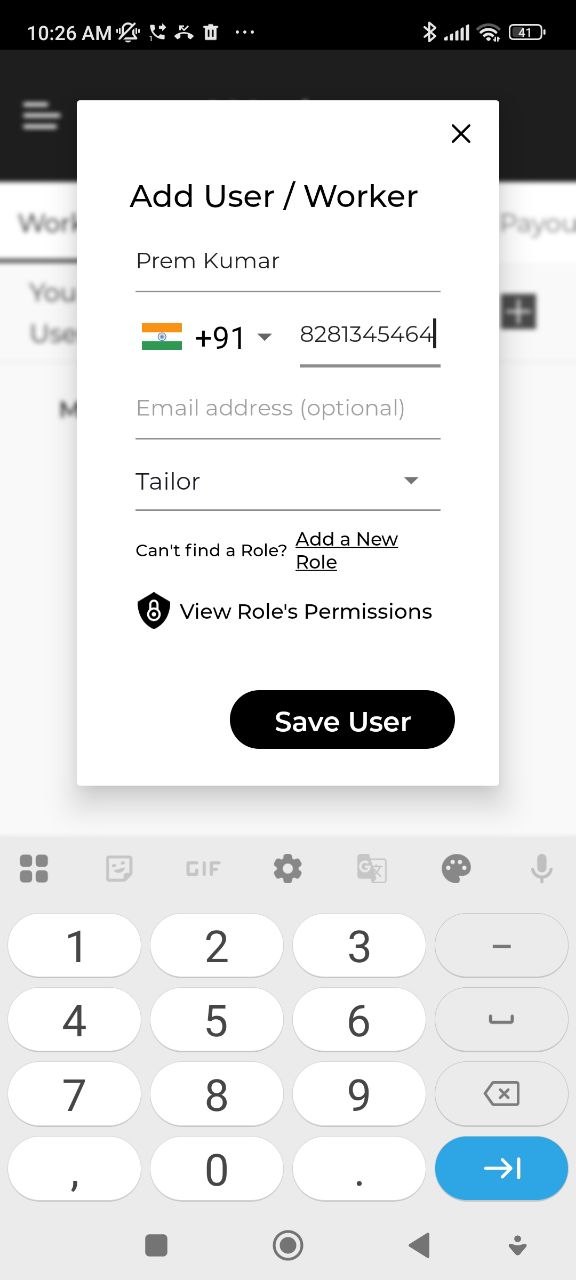
Add a Worker
- Tap the + button.
- Enter the worker's name, phone number, and role.
- Tap Save.
Roles you can assign:
- Shop Manager
- Office Staff
- Worker
- Senior Staff
- Cutting Master
- Tailor
- Workshop Manager
- Delivery Boy
Roles & Permissions
Each role has a different level of access to the app. Assign the appropriate role to control what each worker can see and do.
To manage roles: go to Workers → Roles & Permissions.
Dress Piece Rate
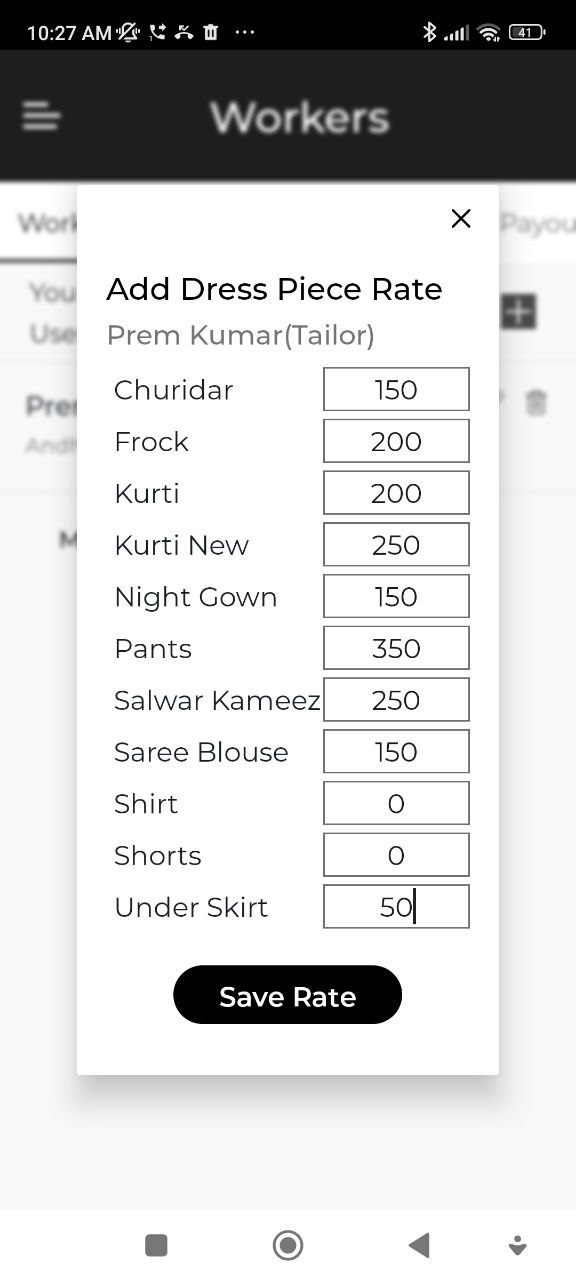
Set a per-garment rate for each worker. This defines how much a worker earns for completing each garment type.
- Go to Workers → Dress Piece Rate.
- Select a worker.
- Set the rate for each garment type.
Task Assignments
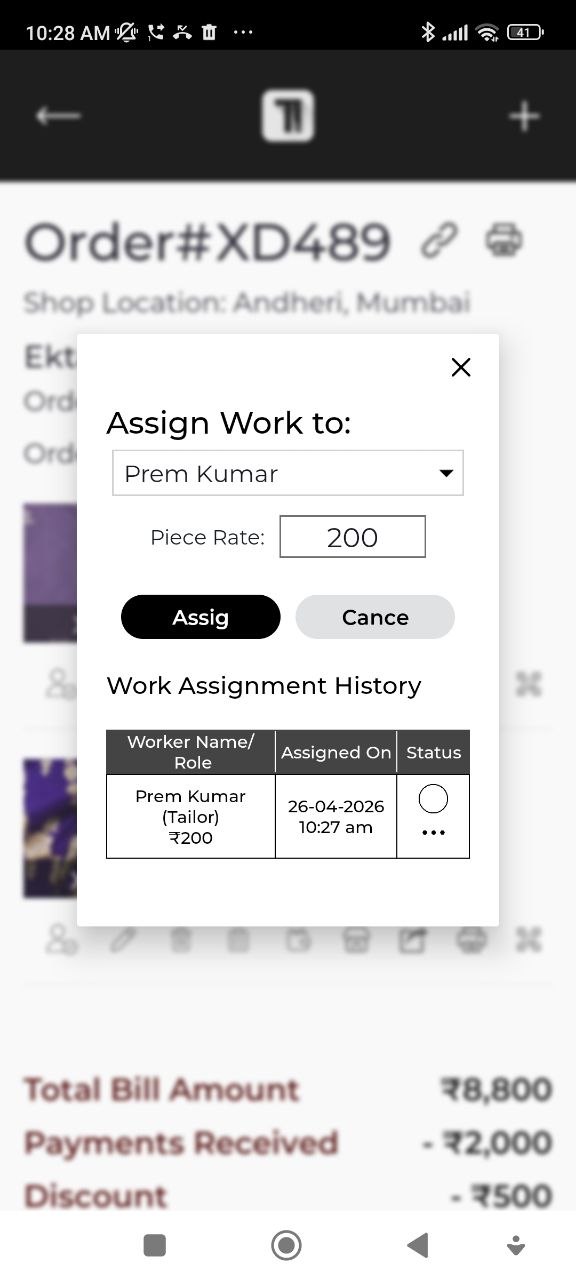
Assign specific production tasks (e.g., Cutting, Stitching) to workers for an order item.
- Open an order and go to the Tasks section, or go to Workers → Task Assignments.
- Select the order item.
- Assign the task to the relevant worker.
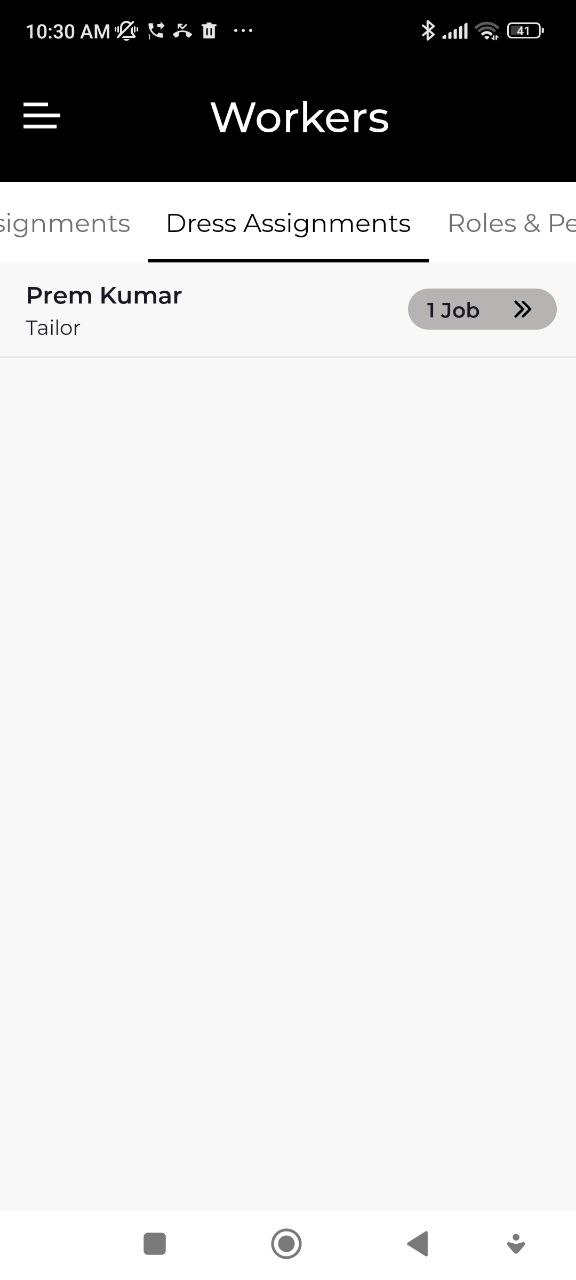
Dress Assignments
Assign complete garment jobs to workers.
- Go to Workers → Dress Assignments.
- Select the order item.
- Assign it to a worker.
The worker will see their assigned work in their task view.
Worker Dues
Track what you owe each worker based on completed work.
Go to Workers → Worker Dues to see:
- Garments completed by each worker
- Amount earned (based on piece rates)
- Amount already paid
- Outstanding balance
Worker Payouts
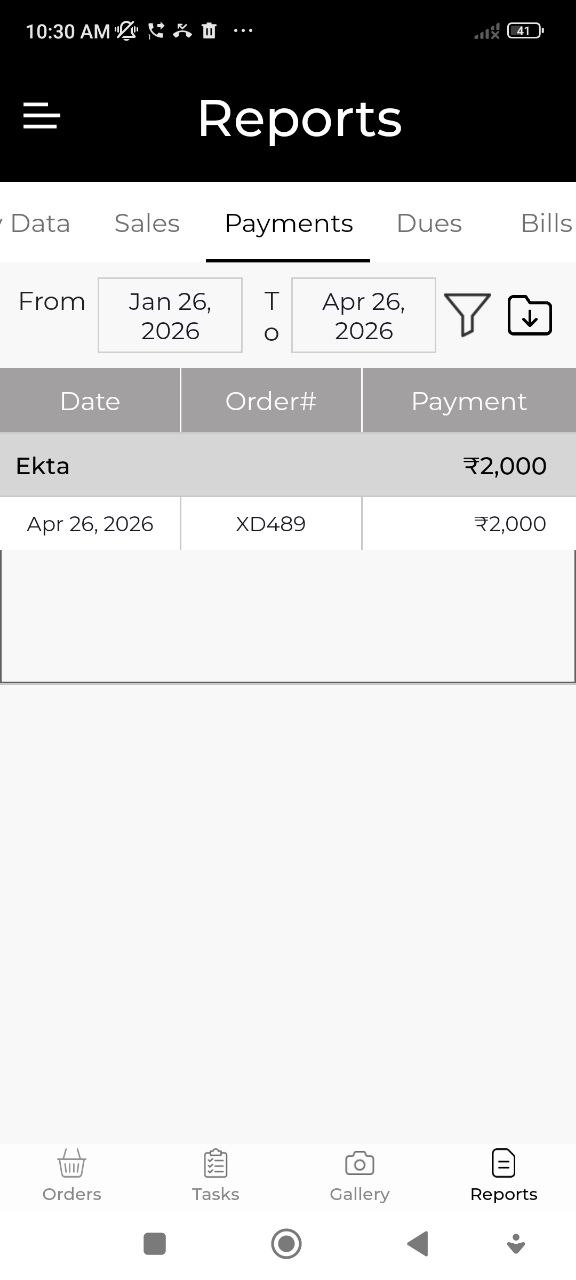
Record payments made to workers.
- Go to Workers → Worker Payouts.
- Tap Add Payout.
- Select the worker, enter the amount and date.
- Tap Save.
The payout is deducted from the worker's outstanding dues.
Set up Dress Piece Rates for each worker so Worker Dues are calculated automatically as orders are completed.