Creating and Tracking Orders
Every garment job is tracked as an order in TailorMate — from the day you receive the cloth to the day you deliver the finished item.
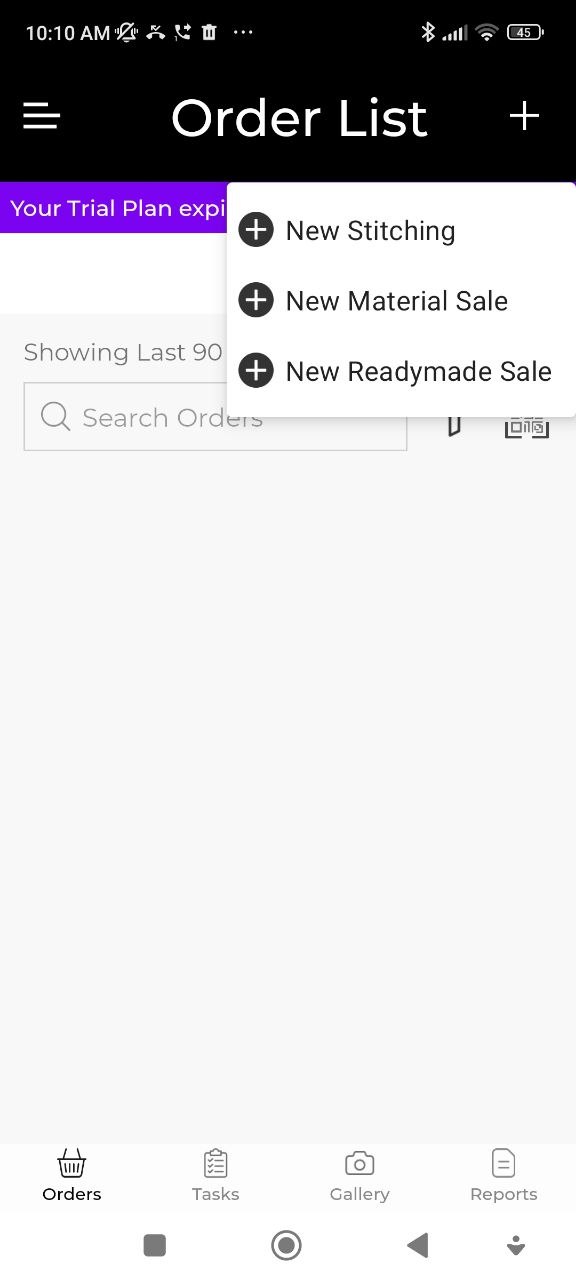
Create a New Stitching Order
- Tap the + button on the Orders screen.
- Select New Stitching.
- Select or add a customer — search existing customers or tap Add New Customer to create one on the spot.
- Select the garment item (e.g. Churidar, Salwar, Saree Blouse, etc.).
- Fill in the order details (see below) and tap Save.
Order Details You Can Enter
Measurements
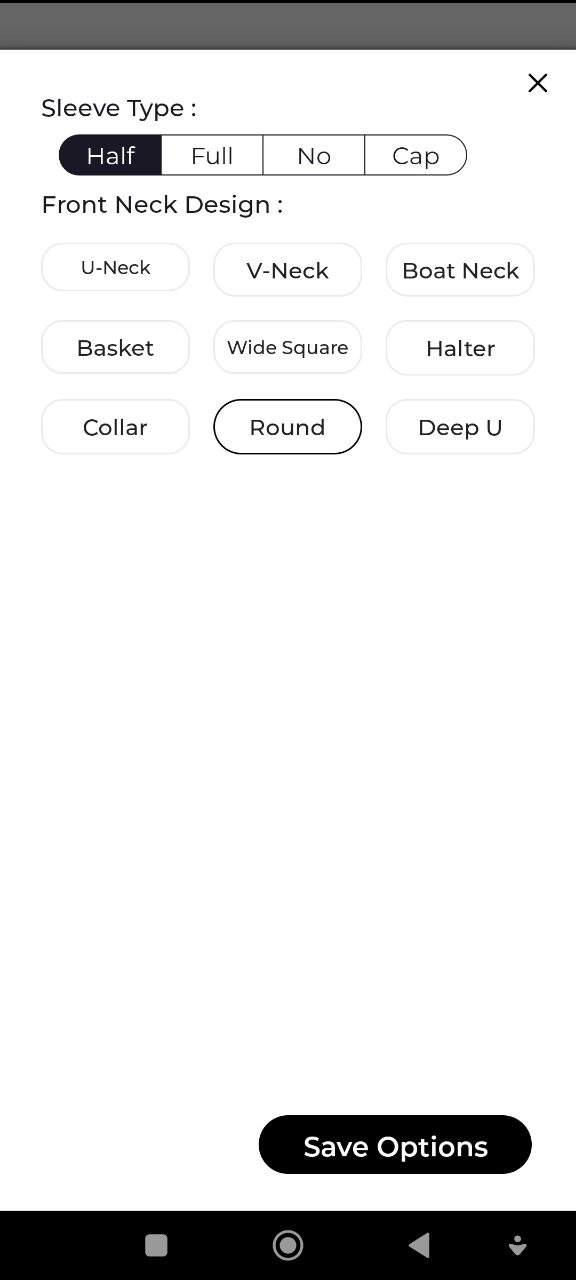
Attach a saved measurement profile or enter measurements directly for this order. You can also choose sleeve style and neck style from preset options.
Instructions
- Type text instructions in the Instructions field.
- Record a voice note for style details.
- Add a video link for reference.
- Upload cloth photos directly to the order.
Pricing
Enter the base price for the order. You can also add add-ons (embroidery, lace, lining, piping, etc.) with their individual prices. The total is calculated automatically.
Dates
| Field | Purpose |
|---|---|
| Delivery Date | When the finished garment will be handed over |
| Trial Date | Intermediate fitting appointment (optional) |
| Function Date | Event/occasion the customer needs the garment for (optional) |
Other Options
- Mark as Urgent — flags the order for priority
- Sales Staff — assign the order to a staff member
Order Statuses
| Status | Meaning |
|---|---|
| Received | Order taken, work not yet started |
| In Progress | Stitching has begun |
| Completed | Stitching done, not yet delivered |
| Ready for Trial | Ready for the customer's fitting appointment |
| Delivered | Handed over to the customer |
| Cancelled | Order was cancelled |
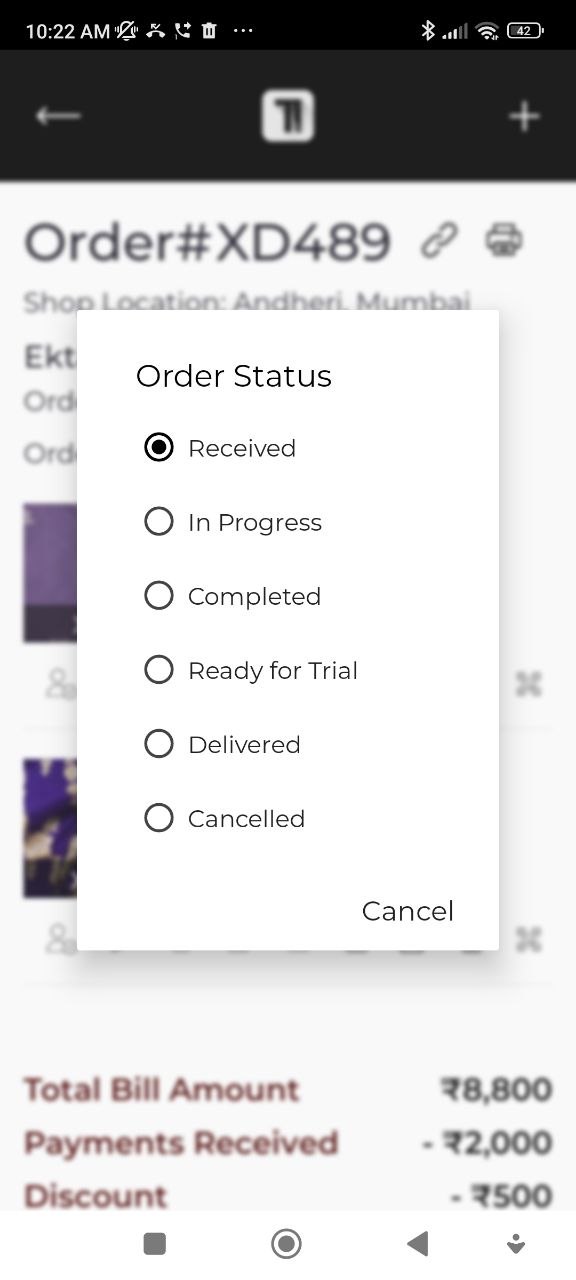
Update an Order Status
- Open the order from the Orders list.
- Tap Update Status.
- Select the new status and confirm.
Filter Orders by Status
On the Orders screen, use the filter tabs at the top to view orders by status — useful for seeing what's ready for delivery or what's still in progress.
Edit an Order
- Open the order.
- Tap Edit.
- Make your changes and tap Save.
Delete an Order
- Open the order.
- Tap the options menu → Delete.
- Confirm deletion.
Deleting an order removes it permanently. Measurements saved to the customer's profile are not affected.
Use the Trial Date and Function Date fields so you never miss a fitting or an event deadline.