App Settings
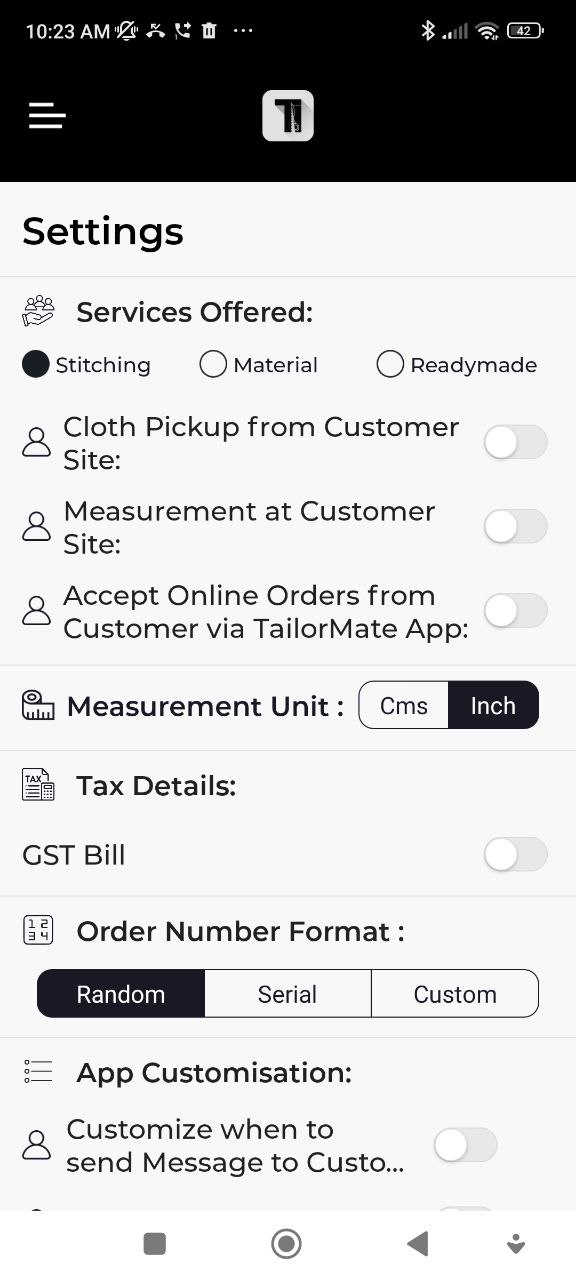
Settings lets you configure how TailorMate works for your shop — from the services you offer to how bills are numbered.
How to Open Settings
Tap the hamburger menu (☰) and select Settings.
Services Offered
Toggle which services your shop provides:
- Stitching — standard tailoring
- Pickup at Customer Site — you collect cloth from the customer's location
- Measurement at Customer Site — you visit the customer for measurements
- Online Orders — accept orders placed online
Measurement Unit
Choose whether measurements are recorded in Centimetres (Cms) or Inches. This setting applies across all measurement fields in the app.
GST Bill
Enable this to generate GST-compliant tax invoices. When turned on, you can select the GST TAX Invoice A4 format when generating bills.
Order Number Format
Control how order numbers are assigned:
| Format | How it works |
|---|---|
| Random | Each order gets a random unique number |
| Serial | Orders are numbered 1, 2, 3 in sequence |
| Custom | You define the prefix and starting number |
App Customisation
| Setting | What it controls |
|---|---|
| Message Timing | When delivery/payment reminder messages are sent |
| Bill Terms | Default terms and conditions printed on bills |
| Bill Number | Starting number for bill numbering |
| Hide Standard Dress Items | Hides the default garment list so only your custom items show |
| Days to Show Orders | How many days' worth of orders are visible on the Orders screen |
Templates
Configure the layout and content of your invoices and PDF bills. Customise what appears in the header, footer, and body of each bill format.
Change Password
- Go to Settings → Account.
- Tap Change Password.
- Enter your current password, then your new password twice.
- Tap Update.
Delete My Account
Found at the bottom of Settings. This permanently removes your account and all associated data.
Deleting your account cannot be undone. All your shop data, customers, orders, and measurements will be permanently deleted.
Log Out
- Scroll to the bottom of Settings.
- Tap Log Out.
- Confirm.
Logging out does not delete your data. Everything is saved in the cloud and will be there when you log back in.