Set Up Your Business Profile
Your business profile is set up when you first create your account. You can update it anytime from Settings. The details you enter here appear on every bill you share with customers.
How to Update Your Shop Profile
- Go to Settings (hamburger menu → Settings).
- Tap Shop Profile or Business Profile.
- Update your details and tap Save.
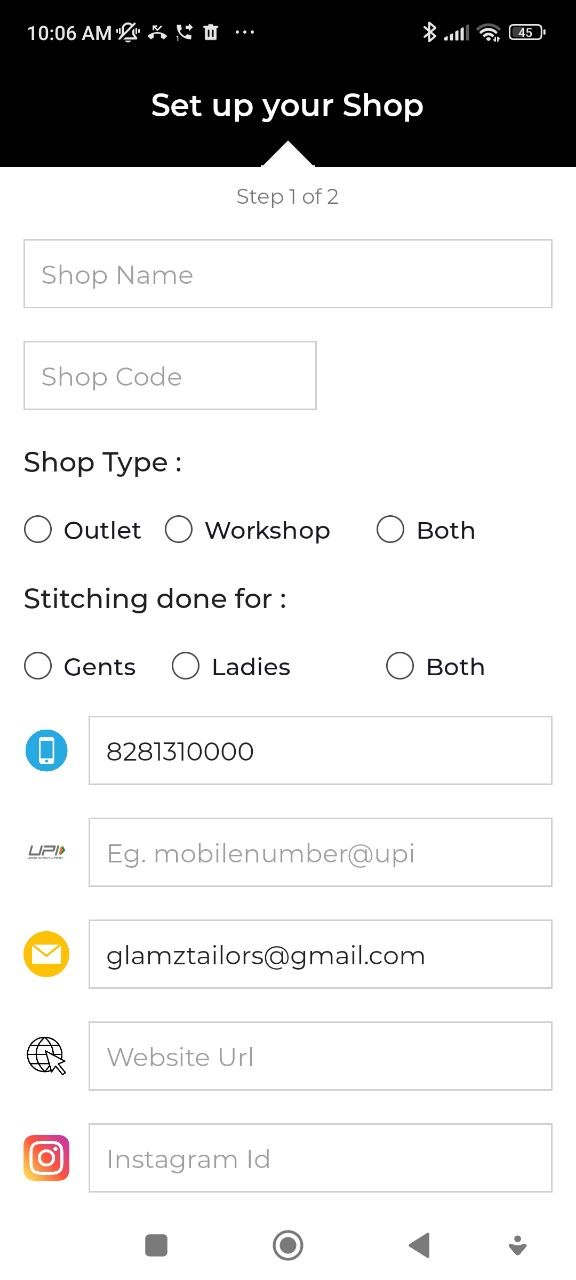
Part 1 — Shop & Contact Details
| Field | What it's used for |
|---|---|
| Shop Name | Printed at the top of every bill |
| Shop Code | Short identifier for your shop |
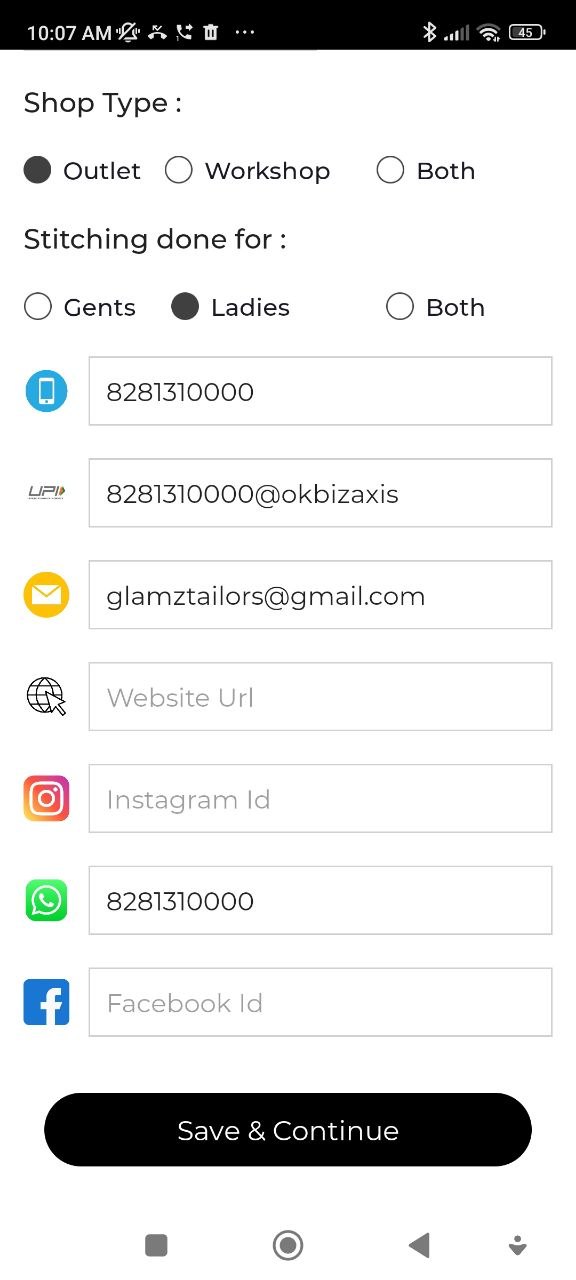
| Shop Type | Outlet, Workshop, or Both |
| Stitching For | Gents, Ladies, or Both |
| Phone Number | Shown on bills — customers call this number |
| UPI ID | Displayed as a QR code on bills for easy payment |
| Shop contact email | |
| Website / Instagram / WhatsApp / Facebook | Optional social and contact links |
Part 2 — Address & Photos
| Field | What it's used for |
|---|---|
| Shop Address | Printed on bills |
| Shop Logo | Appears in the header of every bill |
| Shop Photos | Optional photos of your shop |
Tap the logo placeholder to upload from your gallery or take a new photo.
Where Your Profile Appears
| Location | What shows |
|---|---|
| Bills | Shop name, address, phone, UPI QR code, and logo |
| Reports | Shop name in the header |
| App navigation | Shop name displayed at the top |
tip
Keep your UPI ID up to date — it generates a QR code on bills so customers can pay by scanning directly.