Create Your Account
Creating a TailorMate account takes about two minutes. You'll set up your login credentials and your shop profile in one go.
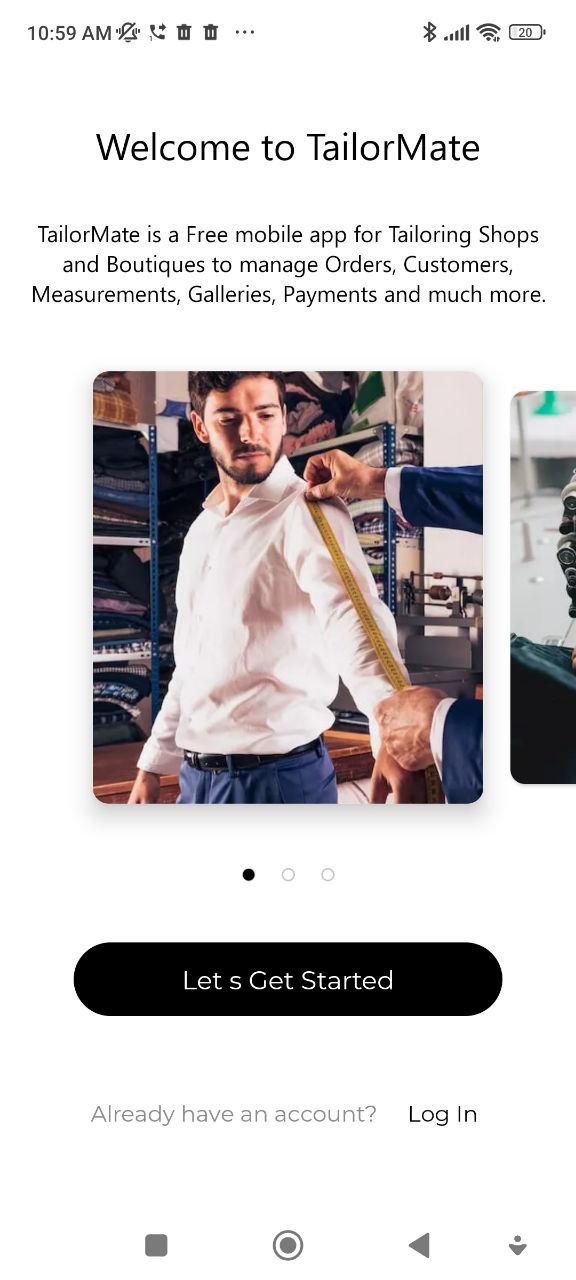
Welcome Screen
When you open TailorMate for the first time, you'll see the welcome screen. Tap Let's Get Started to begin the sign-up process. If you already have an account, tap Log In instead.
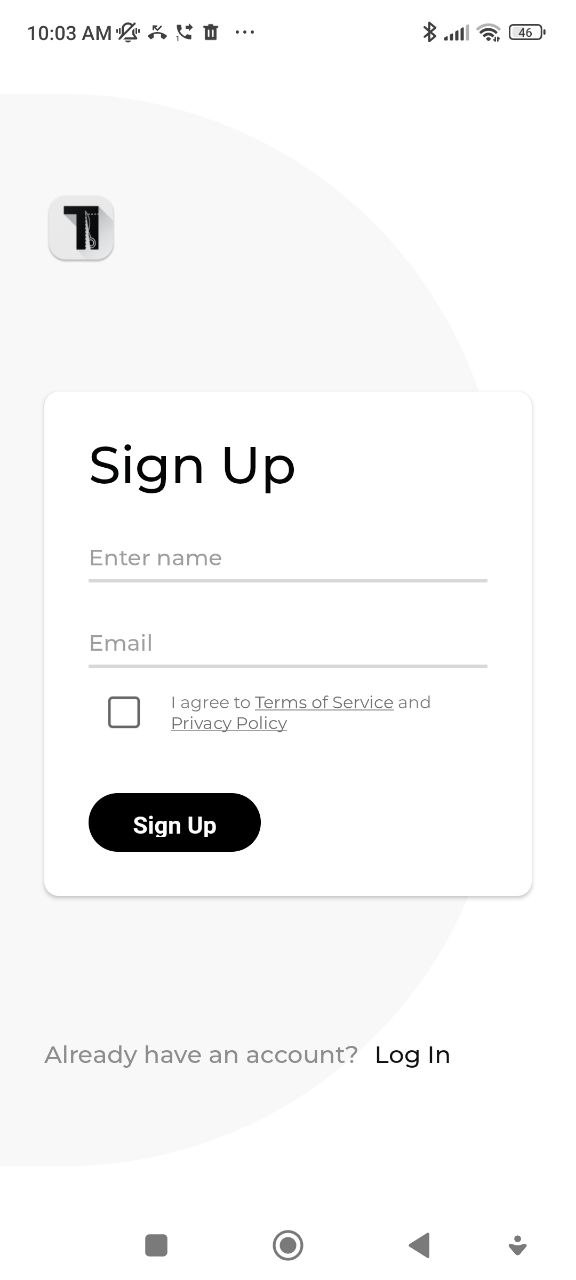
Step 1 — Sign Up
- Open the TailorMate app and tap Sign Up.
- Enter your Name and Email Address.
- Tap Signup.
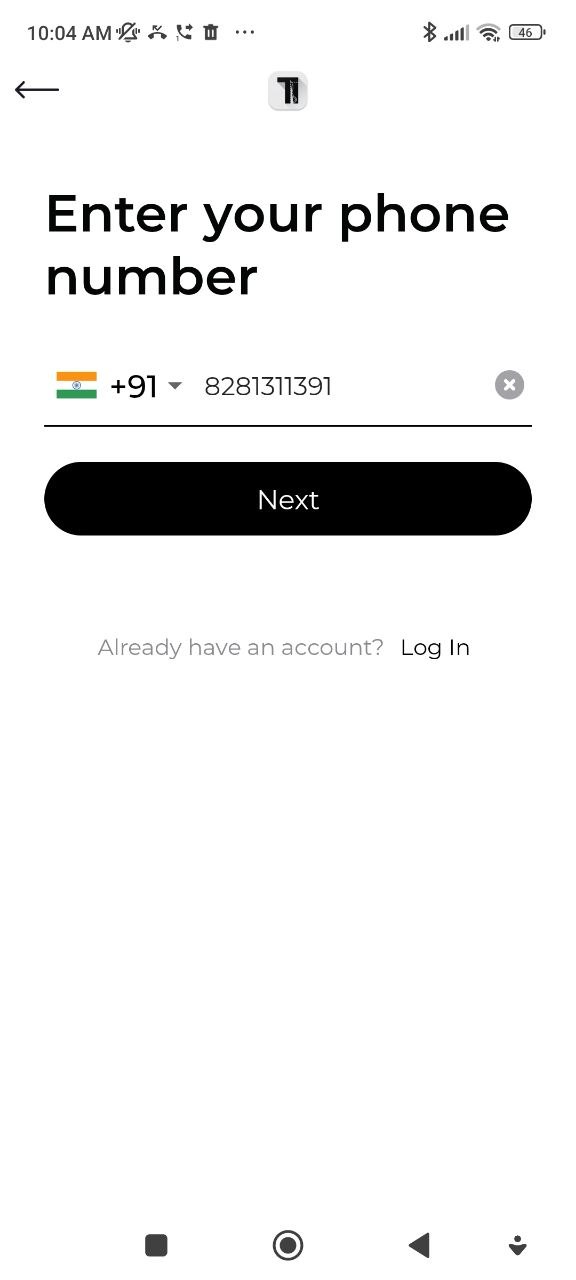
Step 2 — Verify Your Phone Number
-
Enter your mobile number (with country code).
-
Tap Next.
-
Check your WhatsApp — TailorMate sends the OTP via WhatsApp. If you dont have WhatsApp, you can get OTP from your email.
-
Enter the 4-digit OTP and tap Verify.

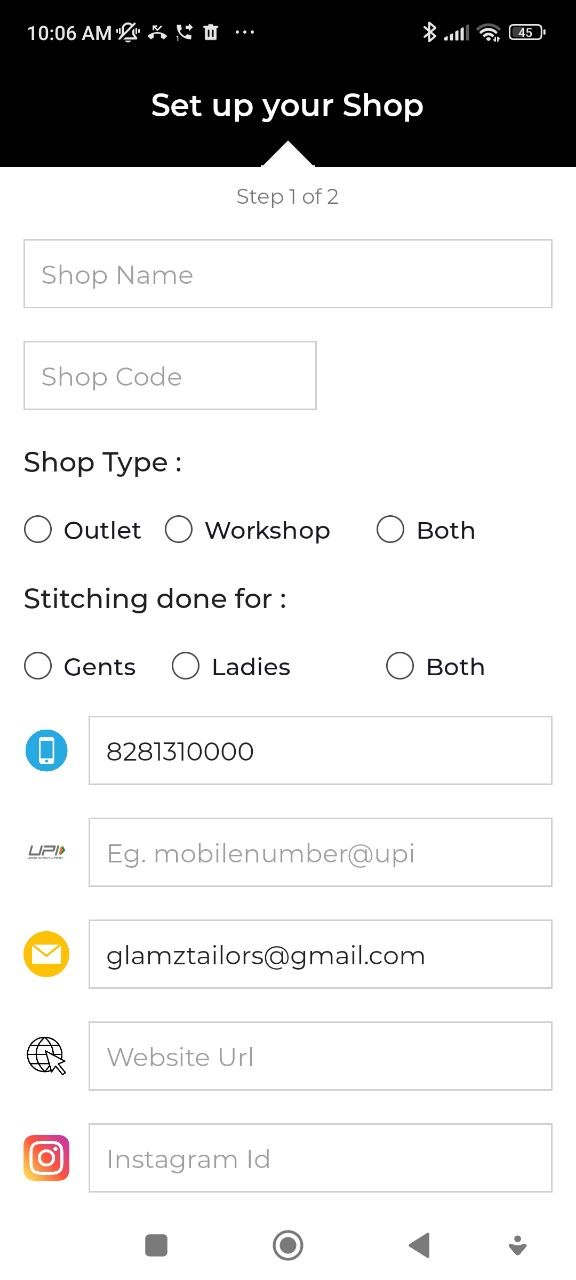
Step 3 — Set Up Your Shop (Part 1)
After verifying your number, you'll be guided through a two-step shop setup.
Fill in your shop details:
| Field | Notes |
|---|---|
| Shop Name | The name that appears on bills |
| Shop Code | A short unique identifier for your shop |
| Shop Type | Outlet, Workshop, or Both |
| Stitching For | Gents, Ladies, or Both |
| Phone Number | Shop contact number |
| UPI ID | For payment QR code on bills (optional) |
| Shop email (optional) | |
| Website / Instagram / WhatsApp / Facebook | Social/contact links (optional) |
Tap Next to continue.
Step 4 — Set Up Your Shop (Part 2)
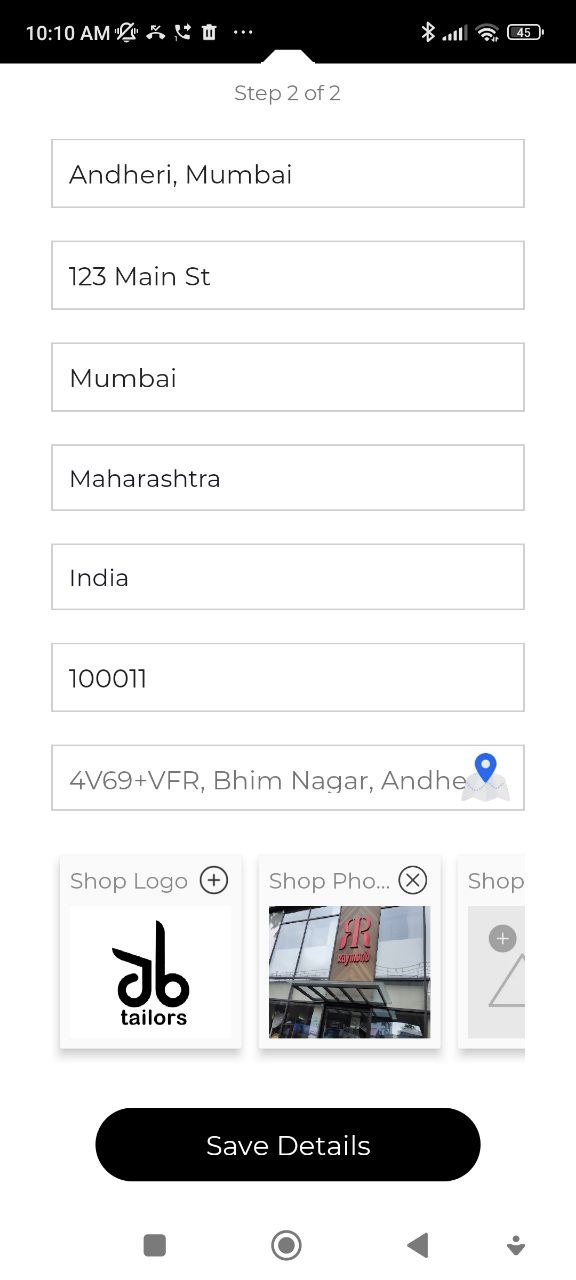
- Enter your Shop Address.
- Tap the logo placeholder to upload your Shop Logo (from gallery or camera).
- Add Shop Photos if you'd like (optional).
- Tap Finish Setup.
Your account is now ready and you'll land on the main dashboard.
Log In
TailorMate uses your mobile number and a WhatsApp OTP to log you in — no password needed.
Step 1 — Enter Your Phone Number
- Open TailorMate and tap Log In.
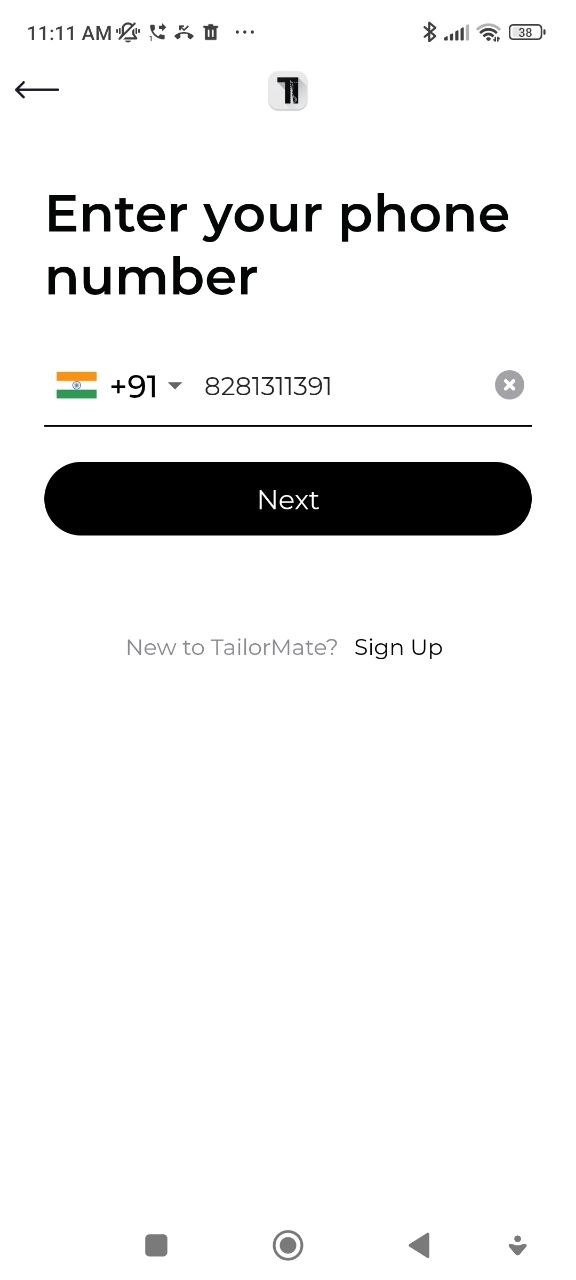
- Enter your mobile number with the country code.
- Tap Next.
Step 2 — Enter the OTP
TailorMate sends a 4-digit verification code to your WhatsApp (and email). Open WhatsApp, copy the code, and enter it in the app.

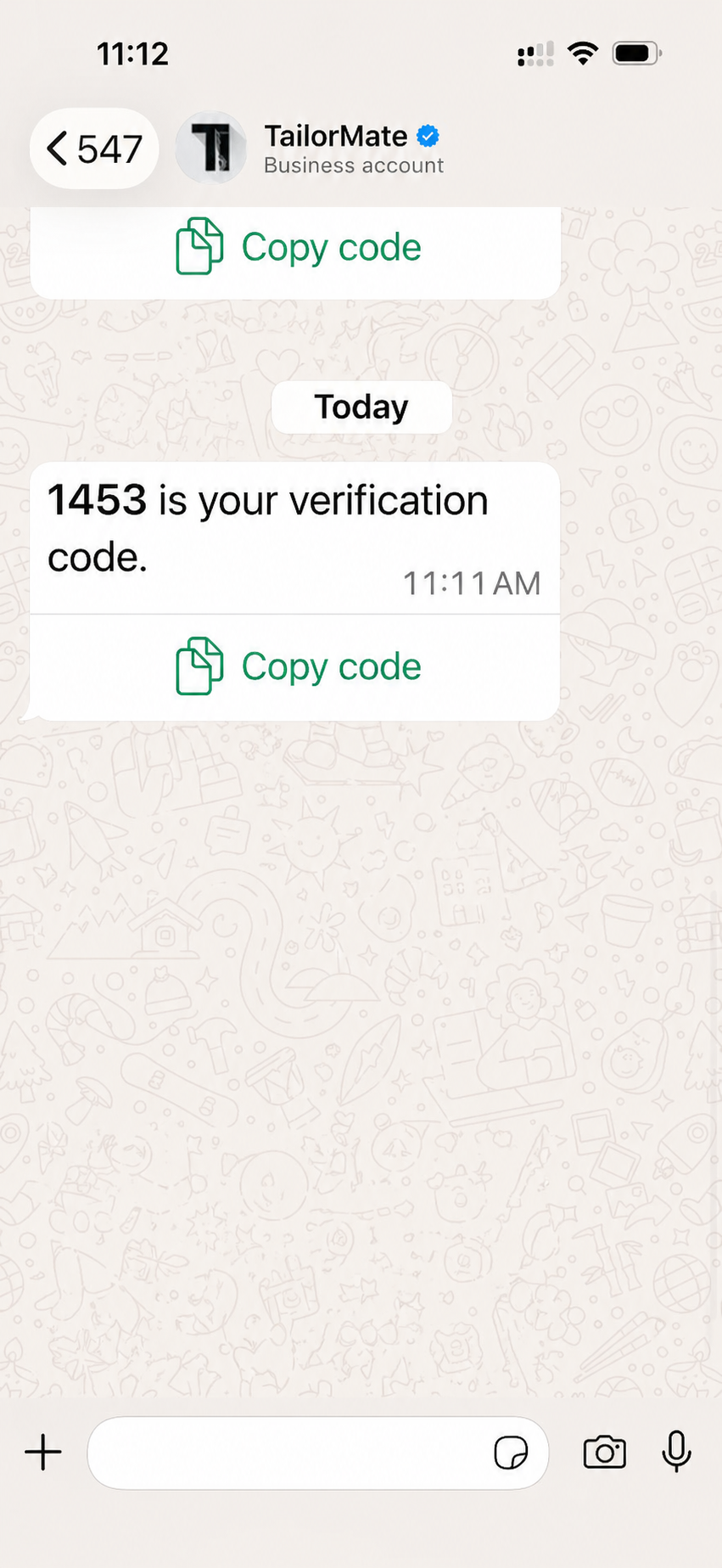
If you don't receive the code, tap I haven't received a code to resend it.
You can update your shop profile anytime from Settings.